CapCut
1 Hours Ago
200 M
v19.7.0
Android 6.0+
1M
Description
CapCut is a popular video editing app for people who want to create and improve videos on a phone or computer. It brings many useful tools into one workspace, including trimming, splitting, music, text, transitions, filters, speed control, overlays, and export settings. The simple layout makes the app suitable for beginners, while its extra creative tools can also help users who want more control over their projects.
The app can be used for short social media clips, travel videos, tutorials, product videos, personal memories, and other everyday editing tasks. Users can import photos or videos, arrange them on a timeline, remove unwanted parts, add sound, and prepare the final project for sharing.
What Is CapCut?
CapCut is a video editing application built around a timeline-style editor. After adding media, users can move clips, shorten them, add text, insert music, use visual effects, and preview changes before exporting. It is designed to make common editing tasks easier without requiring users to learn complicated professional software first.
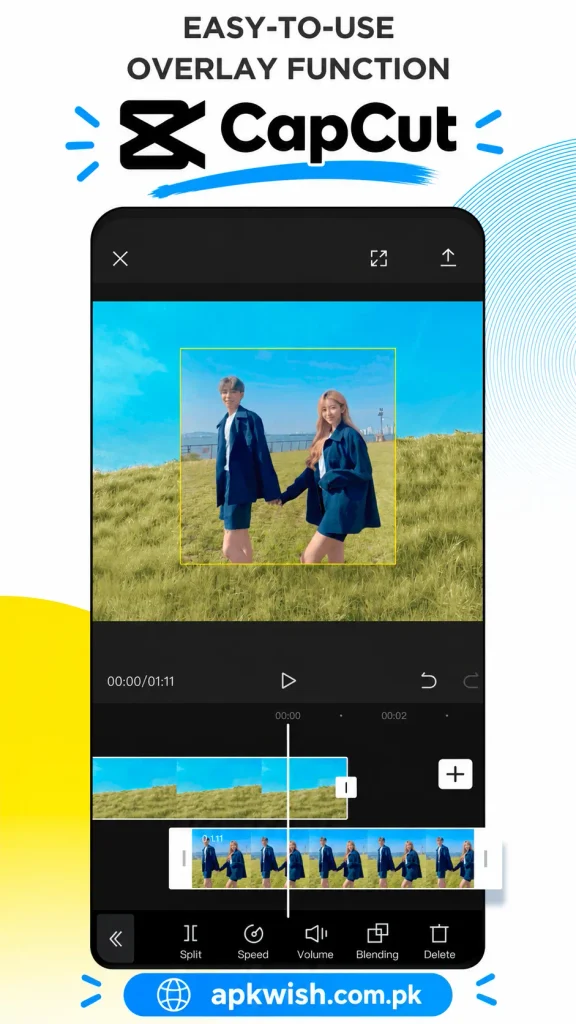
The app works well for both quick and detailed projects. A beginner may only need to join a few clips and add a title, while a more experienced editor may use overlays, keyframes, masks, speed changes, and layered elements. The visual timeline helps users understand where each item appears in the final video.
Main Features of the CapCut
CapCut includes a wide range of basic and creative tools in one place. Users can trim clips, split videos, crop footage, adjust speed, change volume, apply filters, add transitions, insert stickers, and place text over a video. These features cover many of the tasks people need for everyday mobile editing.
Some versions also include templates that combine preset timing, effects, and transitions. Templates can save time, especially for short-form content. Users should still review the finished project before publishing and make sure any music, images, or other media they use are suitable for their intended purpose.
Simple Mobile Interface
The interface is one of the strongest parts of the app. The preview area shows the current result, while the timeline below it displays video, audio, text, and other elements. When a user selects a clip, editing options appear for that specific item.
This layout helps keep the screen organized. New users can start with simple tools such as split, delete, and text, then explore more features as they become comfortable. Frequent users can also work quickly because commonly used controls remain close to the timeline.
Trim, Split, and Arrange Videos
Basic cutting is an important part of any video project. CapCut lets users shorten the beginning or end of a clip, divide one clip into smaller pieces, remove unwanted sections, and change the order of footage.
A useful editing method is to build the main sequence first. Remove repeated scenes, long pauses, and weak footage before adding effects. Once the main video looks clean, it becomes easier to add titles, transitions, music, and other details without making the project confusing.
Text and Caption Tools
CapCut provides text tools for titles, subtitles, labels, and short messages. Users can change the font, size, position, timing, and animation of text. These options are useful for tutorials, educational videos, product clips, and social posts where viewers may watch without sound.
Some supported versions also offer automatic caption tools. These can save time, but users should check the generated text carefully. Names, unusual words, accents, and unclear speech can lead to errors, so manual correction is still important before publishing.
Filters, Effects, and Transitions
The app includes filters, visual effects, and transitions that can change the look and feel of a project. Transitions help connect one clip to another, while filters can adjust the overall mood or color style of a scene.
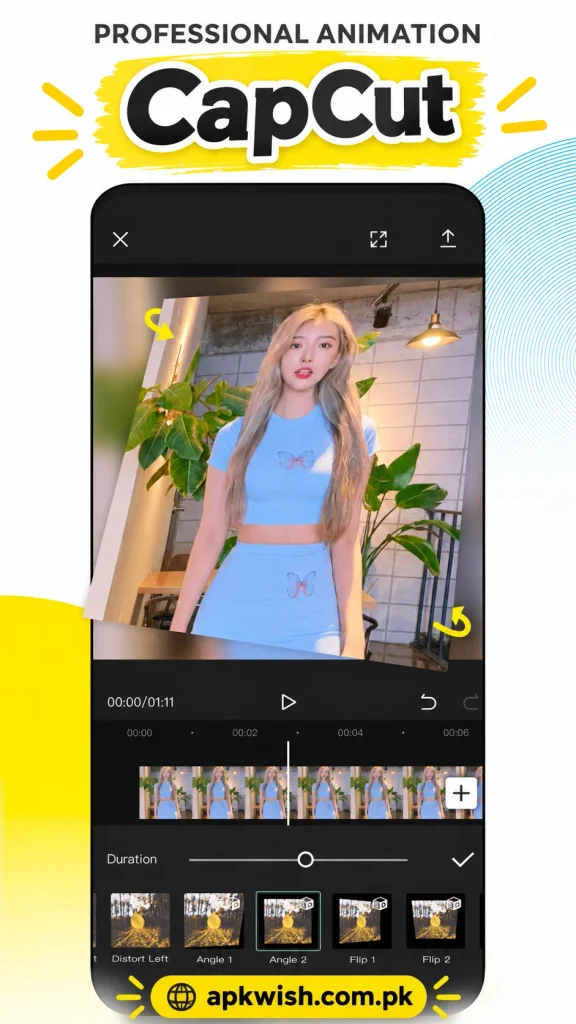
It is usually better to use these tools carefully. Too many effects can distract viewers from the main subject. A simple and consistent visual style often looks cleaner, especially for tutorials, business content, or personal videos where clarity matters more than decoration.
Music and Audio Editing
Sound plays a major role in video quality. CapCut lets users adjust the original clip volume, add music, record or import voice audio, and use available sound effects. These tools help users balance speech and background sound.
When using music, users should check whether they have permission to publish it. A track available inside an editing app may have different rules depending on region, account type, platform, or commercial use. For important projects, using music you own or have permission to use is the safer approach.
Speed Control and Slow Motion
The app offers speed tools that can make a clip faster or slower. Faster playback can shorten long actions, while slow motion can highlight movement or create a dramatic moment.
The quality of slow motion partly depends on the original recording. Footage captured at a higher frame rate usually looks smoother when slowed down. Users should preview the result and avoid extreme speed changes when they make motion look unnatural.
How to Download and Install CapCut?
The safest way to install CapCut is through the official app store on your device or the official website for supported desktop versions. Official sources reduce the risk of modified files, outdated packages, and unwanted software.
Before installing, check available storage, operating system compatibility, and requested permissions. Avoid unknown download pages that offer modified or unlocked packages because unofficial files may create security or privacy problems.
How to Start a New Project?
Open CapCut and create a new project. Select the videos or photos you want to edit, then add them to the timeline. Arrange the media in the correct order and trim unwanted sections first.
Next, add text, music, transitions, filters, or other effects as needed. Preview the full project and check audio levels before exporting. It is also useful to keep copies of the original files in case you want to make another version later.
Exporting a Video
Before exporting, users can normally choose settings such as resolution and frame rate, depending on the device and available options. Higher settings may produce larger files and can require more processing time.
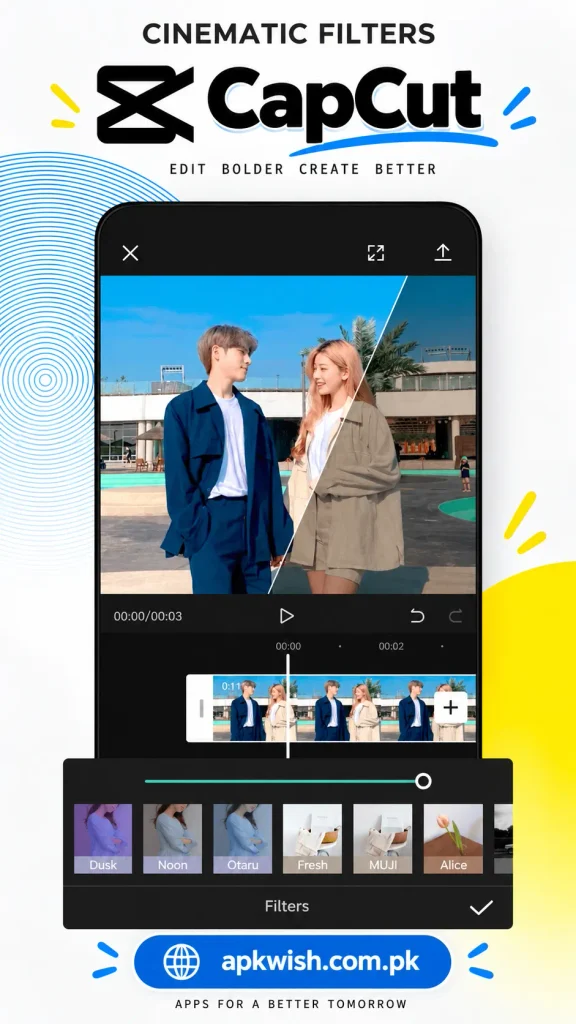
The best export settings usually depend on the quality of the original footage and the platform where the video will be uploaded. Always watch the final exported file once before deleting the project or source media.
Pros and Cons
Pros
- Easy timeline for beginners
- Useful trimming and splitting tools
- Text, caption, filter, and transition options
- Audio and speed controls
- Support for creative effects
- Useful for short videos and personal projects
- Simple controls for everyday editing
- Multiple export options
Cons
- Some features may vary by device or region
- Large projects can use more storage and memory
- Certain tools may need internet access
- Users must still check media and music rights
- Heavy projects may run slowly on older devices
FAQs of CapCut
Yes. Its timeline and basic editing controls are easy to understand, making it suitable for users who are learning video editing. Beginners can start with trimming and text before exploring more advanced tools.
Yes. The app can be used for short clips, tutorials, vertical videos, travel videos, product clips, and other social media content. Users can prepare projects according to the size required by their chosen platform.
Many versions include text and caption tools, including automatic options in supported versions. Generated captions should still be reviewed for spelling, timing, and accuracy before a video is published.
Yes. Users can adjust volume, add music, work with voice recordings, and use available sound controls. Keeping voice audio clear and background music at a suitable level can improve the final result.
Using the official app store or official website is safer. Unknown APK files can be modified, outdated, or unsafe. Users should avoid files from sources they do not trust.
Conclusion
CapCut gives users a simple way to edit videos without starting with difficult professional software. Its combination of trimming, text, audio, effects, speed controls, and export options makes it useful for many everyday projects.
For a better experience, install CapCut from an official source, review app permissions, keep original files backed up, and check the usage rights of music or other media added to a project. With a clean editing style and careful use of effects, the app can help users create polished videos for personal, educational, and social media use.