Wave Launcher APK Download Themes and Android Setup Guide
2 Hours Ago
153 MB
1.0.37
Android 6.0+
42K+

Description
Your home screen is one of the parts of your phone you use most. Yet its layout may not suit the way you organise apps or the style you prefer. Wave Launcher gives Android users more control over that everyday space.
You can change wallpapers, adjust icons, organise apps, and redesign the dock. Its liquid glass effects also add transparent layers that work with your chosen background.
However, appearance is only part of the experience. Search, app stacks, and flexible layouts aim to make your phone easier to navigate. This guide explains the main features and how to build a setup that remains useful after the first impression.
What Is Wave Launcher?
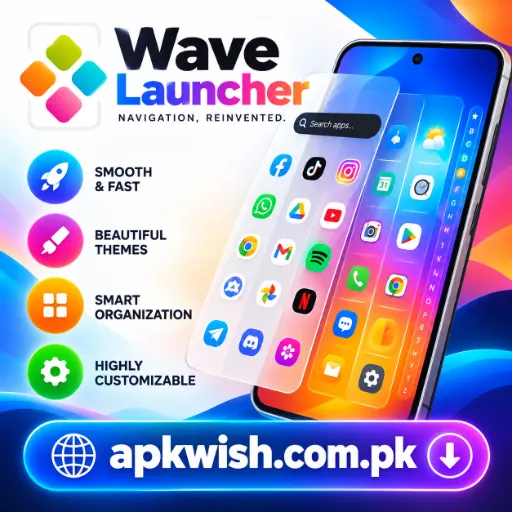
Wave Launcher is an Android home screen replacement. It changes how you reach your apps, arrange shortcuts, and browse the app drawer.
A launcher does not replace Android itself. Instead, it provides a different home-screen interface while your installed apps continue to work as separate applications.
The Wave Launcher App combines visual customization with organization tools. You can start with a ready-made theme or adjust individual parts of the layout.
That makes it suitable for both a quick makeover and a more detailed setup.
Liquid Glass Design
The liquid glass style uses transparency, blur, and layered surfaces to create a glass-like appearance. The dock and other interface elements blend with the wallpaper behind them.
This effect can make the background feel more connected to the rest of the screen. However, the result depends on your wallpaper and settings.
A busy image may compete with icons and text. Meanwhile, a simpler background can make transparent surfaces easier to read.
Balance Style With Readability
Start with moderate effects and check the screen in different lighting. You should still recognise icons and read labels without concentrating.
If the layout looks attractive but makes everyday tasks harder, reduce the visual effects or choose a calmer wallpaper.
Wallpaper Gallery and Personal Photos
Wave includes a wallpaper gallery with different styles, including minimal, abstract, and scenic images. You can preview a background before applying it.
You can also import your own photo and adjust its crop with pinch-to-zoom controls. This helps you place the important part of the image where icons will not cover it.
Before saving, check both the top and bottom of the screen. A photo may look good in the preview but clash with a widget or dock in your normal layout.
Animated and Live Wallpapers
The app also offers animated and 3D live wallpaper options. These add movement for users who prefer a more active background.
Try one during normal use before committing to it. Watch how it affects readability, responsiveness, and battery use on your device.
A still wallpaper remains a useful option when you want fewer distractions.
Icon Packs and Icon Styling
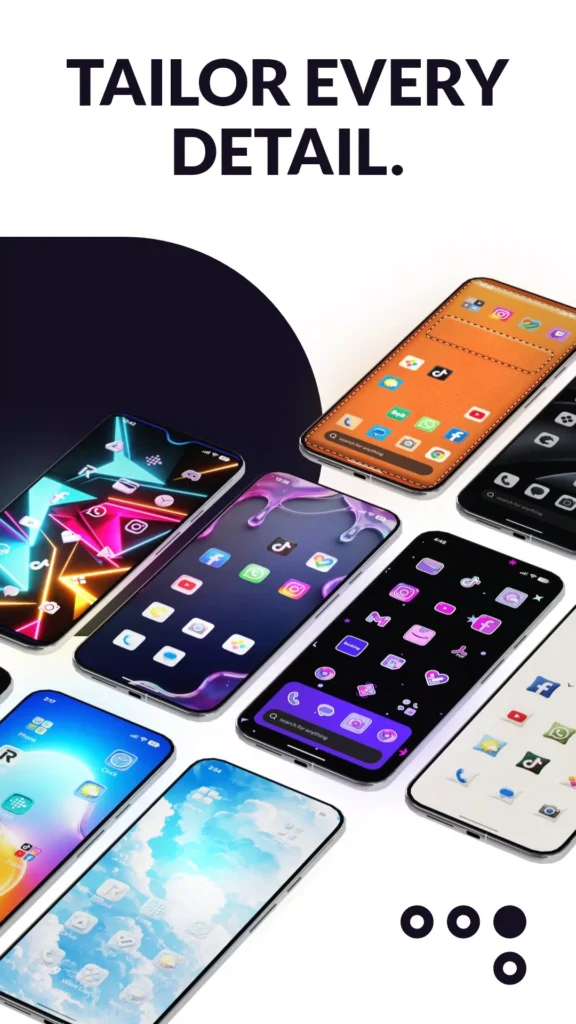
Icons have a large effect on how a home screen looks. Wave supports third-party icon packs and offers controls for icon size, shape, and labels.
You can choose shapes such as circles, squares, and rounded squares. In addition, you can decide whether to display app names.
However, hiding labels works best when you already recognise the icons. If an icon pack changes familiar designs, keep the names visible until you learn the new appearance.
A Simple Starting Approach:
- Choose one icon style.
- Keep sizes consistent.
- Leave enough space between shortcuts.
- Check that important apps remain easy to recognise.
- Adjust labels only after testing the layout.
Also, review an icon pack’s coverage before choosing it. Do not assume it includes a custom design for every app you own.
Flexible Home Screen Grids
The grid controls how many apps fit across the screen. Wave’s described options range from three columns to six.
A wider layout can hold more shortcuts, while fewer columns leave more room around each item.
Neither option is automatically better. Choose according to your screen size, eyesight, and the number of apps you regularly open.
Arrange Apps and Widgets
You can drag apps into position and resize supported widgets using handles. This gives you room to combine shortcuts with useful information.
For example, place a calendar widget near your work apps or keep a clock above your most-used shortcuts.
Start with essentials. Adding every available widget can make the home screen harder to scan.
Smart App Drawer
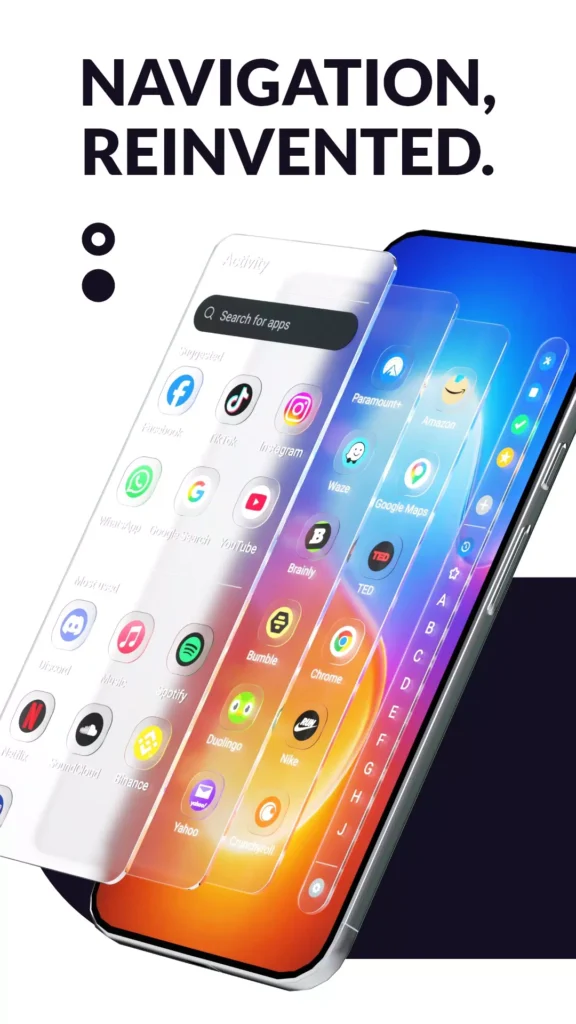
Swipe up to open the app drawer. Wave offers alphabetical navigation and grouped browsing through stacks.
An alphabetical index helps when you know an app’s name. Grouped browsing is useful when you remember its purpose but not exactly where you placed it.
The drawer also includes search and app suggestions. Its described categories include recently installed, recently used, most-used, and favourite apps.
Use whichever method feels quickest in practice. You do not need to rely on every navigation option simply because it is available.
Organise Apps With Custom Stacks
Stacks let you group apps under names, colours, and icons that make sense to you.
You might create separate groups for work, travel, entertainment, or shopping. Alternatively, organise around tasks such as studying or editing photos.
The best system is one you can remember without thinking.
Keep Groups Simple
Avoid creating many stacks with overlapping purposes. If you hesitate over where an app belongs, the categories may be too complicated.
Start with a few broad groups. Then split one only when it becomes difficult to browse.
Wave also supports different stack layouts, reordering, and pinning stacks to the home screen.
Locked Stacks
The description includes biometric or PIN protection for sensitive stacks.
Treat this as protection for access through the launcher’s stack interface. Do not assume it encrypts an app’s data or blocks every other route into that application.
Continue using your phone’s screen lock and any security controls provided by individual apps.
Customisable Dock
The dock keeps selected shortcuts close at hand. Wave lets you change its colours, transparency, blur, and liquid glass appearance.
You can also add a search bar or disable the dock if you prefer another layout.
Choose shortcuts based on frequency rather than habit. Phone, messages, camera, and browser apps may make sense, but your own priorities could be different.
Keep the dock manageable. Its value comes from reaching a small number of essentials quickly.
Search Apps, Contacts, Files and the Web
Wave’s search brings several sources into one place. The app description includes apps, contacts, files, and web results.
You can choose a preferred search engine and control which sources appear.
Start with the sources you actually use. If you mainly want to open installed apps, a narrower search may feel clearer than a page filled with unrelated results.
Review permission requests when enabling additional sources. For example, searching contacts may require access to contact information.
News Feed and Themes
The built-in news feed offers categories such as technology, business, and sports. You can filter content by category or provider.
This may suit users who like checking headlines from the home screen. However, consider whether news helps your routine or simply adds another distraction.
Themes offer a separate way to change the launcher’s overall appearance. You can apply a prepared style, then adjust individual colours and surfaces.
For a consistent result, choose a small colour palette. Matching every element exactly is less important than keeping text and controls clear.
Wave Launcher Download and Installation
For a Wave Launcher Download, open Google Play and check the publisher: Live Wallpapers by Wave Studio.
The listing includes ads and in-app purchases, so review the available options before assuming every feature is free.
Setup Steps:
- Search for the app in Google Play.
- Confirm the publisher and compatibility.
- Install and open it.
- Follow the initial setup prompts.
- Select it as your default home app when ready.
- Choose a simple wallpaper and grid.
- Add your essential shortcuts first.
- Explore further settings gradually.
If you search for Wave Launcher APK, remember that Google Play already handles Android installation. You do not need to enable unknown-source installation when using the store.
Performance and Everyday Use
The developer describes smooth animations and hardware-accelerated visuals. However, actual performance depends on your phone and the effects you enable.
Test Wave Launcher Android during ordinary tasks, including opening apps, returning home, searching, and switching between screens.
If the phone feels slower, reduce animation, blur, or live wallpaper effects where the settings allow.
Change one option at a time. This helps you identify the cause instead of removing a setup you otherwise enjoy.
Switching Back to Your Previous Launcher
Trying a launcher does not require a permanent commitment. You can usually return to your previous home app through Android’s default-app settings.
Menu names differ between phones, but look for an option such as Default apps or Home app.
Choose your previous launcher and check the result before uninstalling Wave. Your layouts may differ between launchers, so do not expect custom arrangements to transfer automatically.
Final Thoughts
Wave Launcher offers plenty of ways to change an Android home screen, from glass-like visuals and wallpapers to app stacks and search.
Start with a layout that helps you find things quickly. Then add visual details that you enjoy. A good home screen should look personal and remain comfortable throughout the day.
FAQs
It changes the Android home screen, app drawer, shortcuts, and related launcher features. It does not replace the Android operating system.
Yes. The described features include importing personal photos and adjusting their crop.
Yes. It also offers icon shape, size, and label controls.
The Google Play listing includes ads and in-app purchases. Check the current terms for individual features.
Yes. Select your previous launcher in Android’s default home-app settings.